Are there changes in how to contact Support for Quark Products?
Yes. There is a new Case/Support Portal to log tickets and manage all active requests. Access it at: enterprise-support.quark.com
|
! |
Note: You will not be able to raise tickets through the old portal after migration. |
How do I access the Support portal?
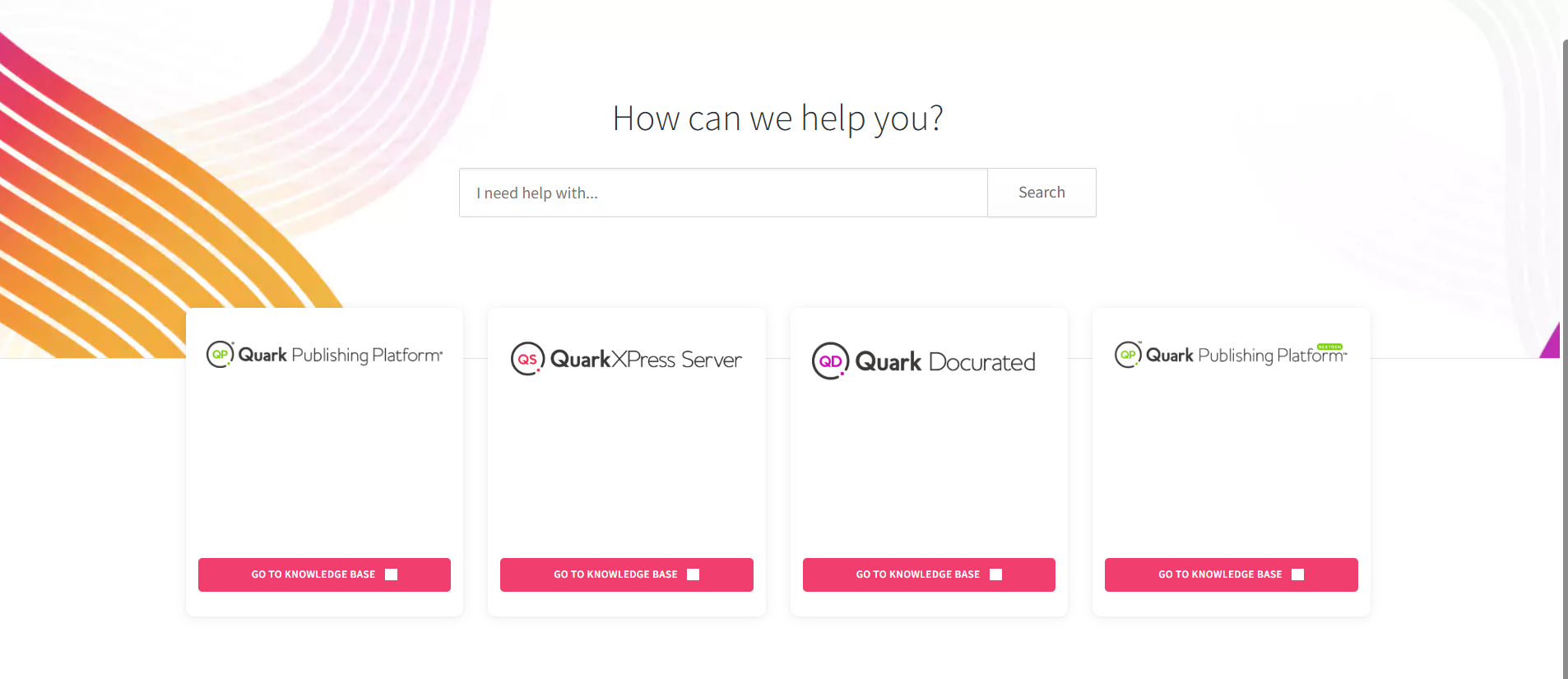
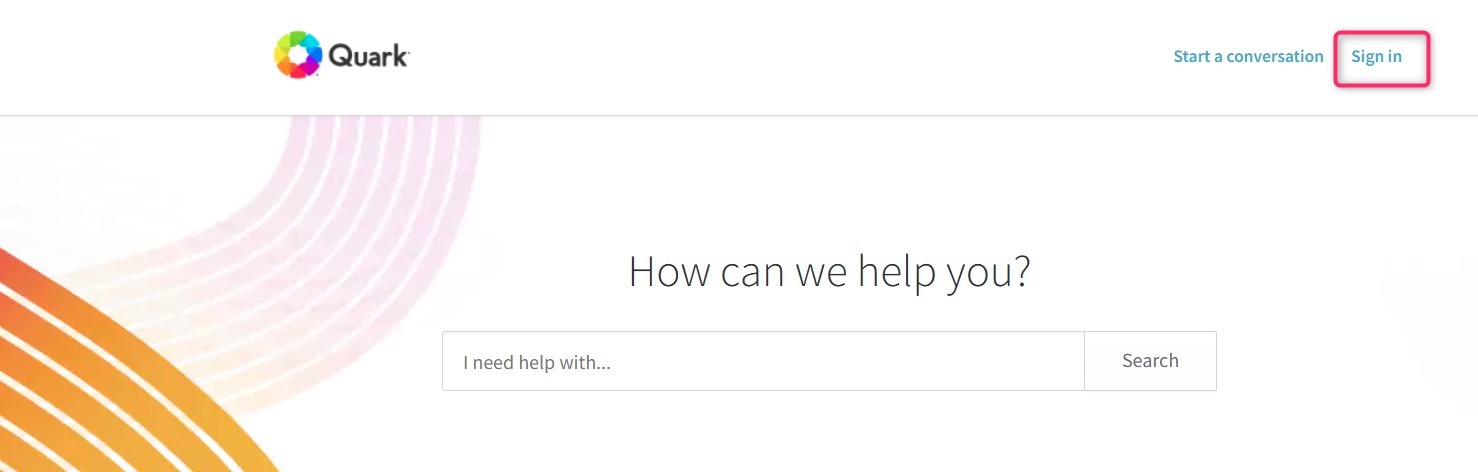
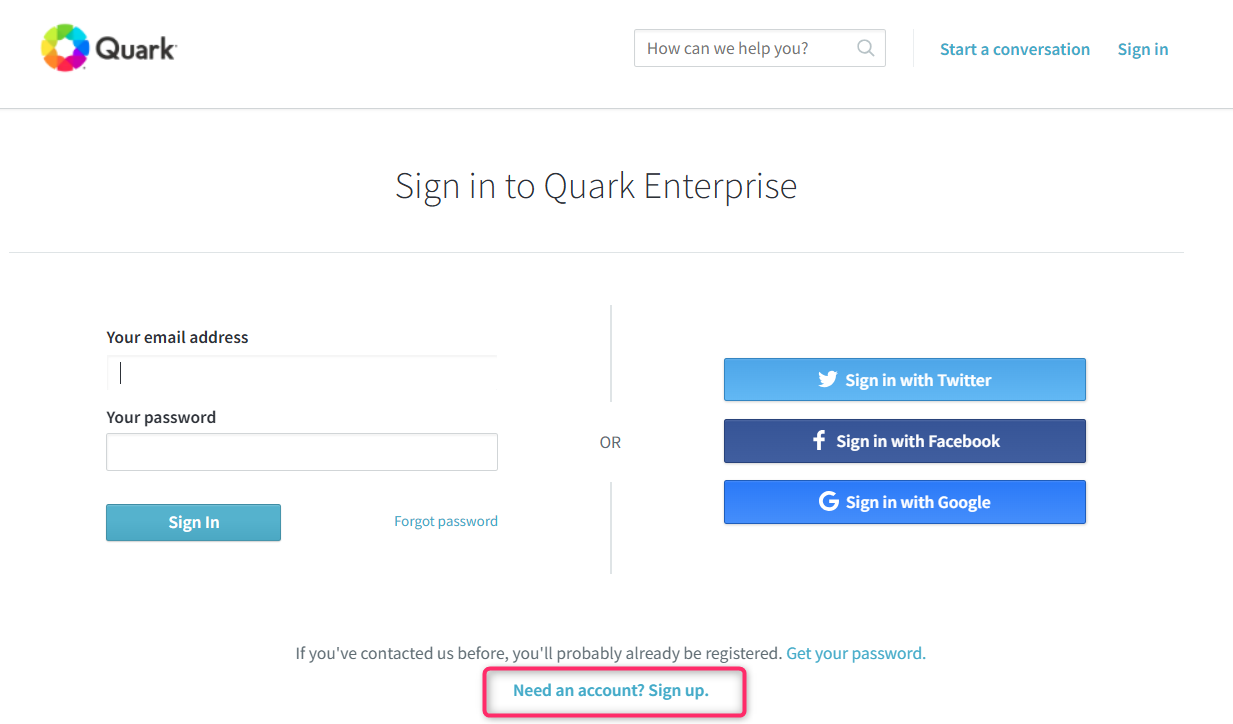
Go to the Quark Support portal and select the product you need. Then click "Sign In" at the top right corner of your screen.
-
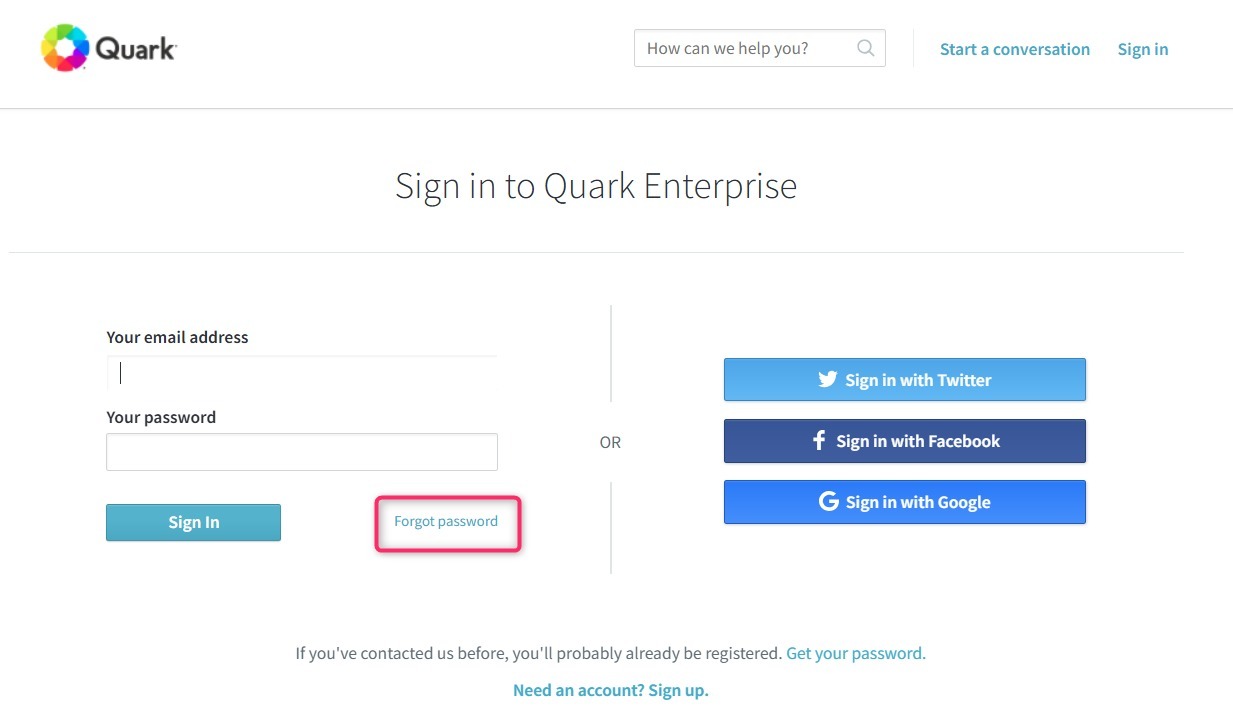
Existing users — log in with your usual email after resetting your password via the "Forgot password?" link.
-
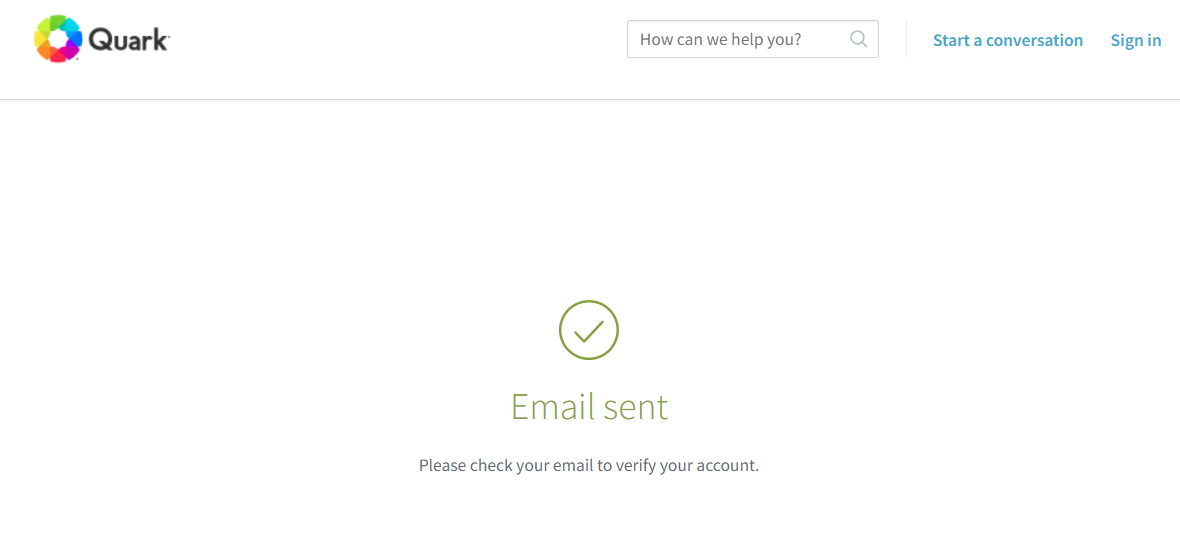
New users — click "Need an account? Sign up", enter your full name and email, then follow the verification link.
|
! |
Note: Users who created Support cases in the last year will receive a password reset email from Quark Support on the day of migration. |
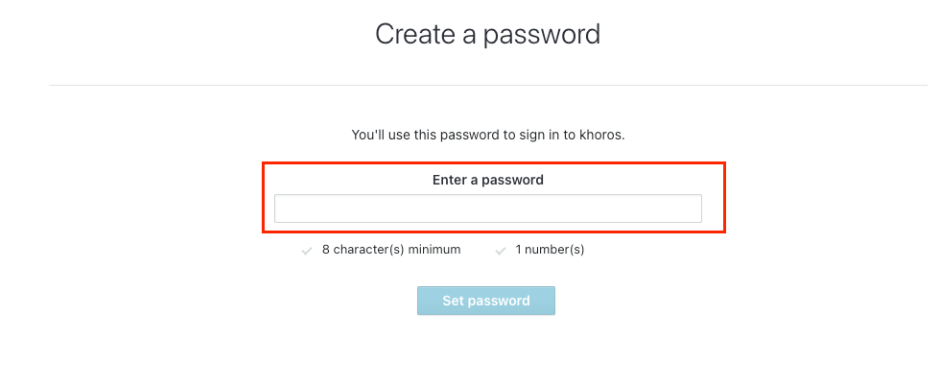
I am unable to verify email or reset my password
-
Use the ChatBot — click the "Unable to login?" ChatBot in the bottom corner. Enter your email and it will guide you through next steps.
-
Check your inbox — also check your Spam or Junk folder if you don't see the email.
How do I create a ticket?
-
After signing in, click the chat icon in the bottom right or select "Start a Conversation" at the top. Click Start Chat to begin.
-
Our AI-Powered Support Agent, specialized in Quark Products, will assist with your questions.
-
The AI agent can significantly reduce resolution time. If unable to resolve, it gathers info before transferring you to a human agent.
-
While you can raise a ticket directly, we encourage interacting with the AI first so all necessary info is collected.
-
Chat not loading? The AI chat widget uses Voiceflow, which may be blocked by corporate firewalls or tools like Zscaler. If the chat bubble doesn't appear, ask your IT team to whitelist *.voiceflow.com, or disable browser ad-blockers and reload. See our AI Assistant chat not loading article for full troubleshooting steps.
What happens if I have an open ticket?
-
All previously open or pending tickets will be migrated and assigned a new conversation ID for better tracking.
-
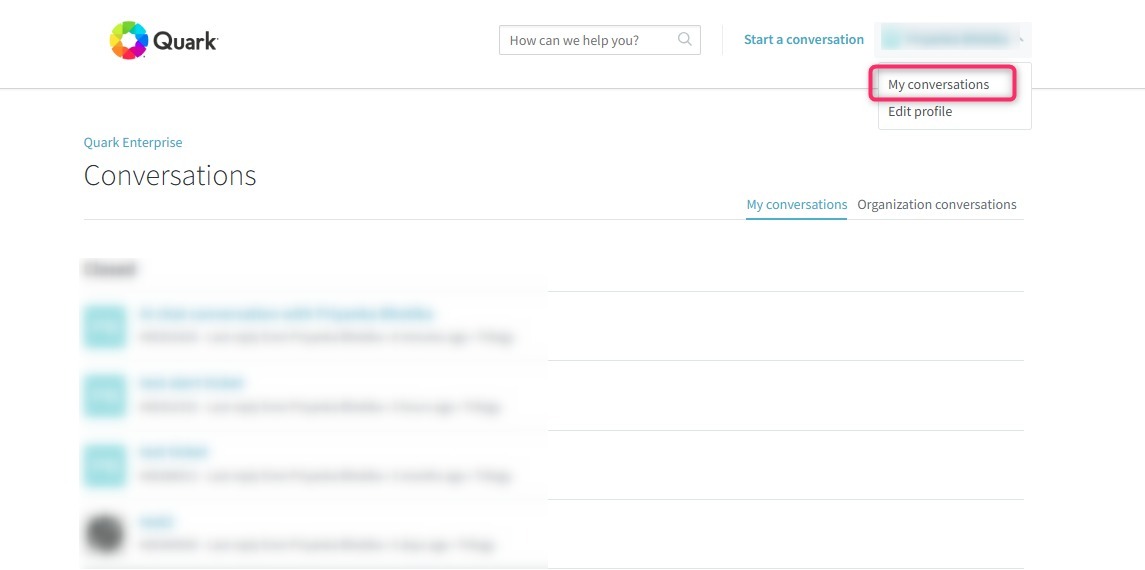
Go to "My Conversations" via the profile icon (top right) to view all your support requests.
How do I search for the old ticket?
-
Navigate to "My Conversations" after signing in. You will see a list of open and previously closed cases.
The legacy case ID is included in the subject line of each conversation for easy searching.
Priyanka Bhotika
Comments